> For the complete documentation index, see [llms.txt](https://kaizoku.gitbook.io/steganography/llms.txt). Markdown versions of documentation pages are available by appending `.md` to page URLs; this page is available as [Markdown](https://kaizoku.gitbook.io/steganography/histogram-shift-in-image.md).
# Histogram Shift in Image
A method to hide the message in an image.
This article covers image steganography using the histogram shift method.
We will use PNG format images as cover file because PNG stores pixels exactly as they are with lossless compression and while saving JPEG images multiple times can degrade the image and potentially lose hidden data but PNG files maintain their quality and preserve embedded information.
#### Why Histogram Shift?
Before diving into histogram shift, let's understand why we need an alternative to LSB. While LSB method is effective, it has some limitations:
* LSB method modifies every pixel's least significant bit which can create detectable patterns for steganalysis tools. Even tho it can be detected but without correct key its impossible to extract the file.
* Histogram Shift is a more sophisticated steganography technique that provides better security against steganalysis tools, while maintaining visual quality. Instead of modifying bits directly, it manipulates the statistical distribution of pixel values in a way that's much harder to detect.
Think of it this way: Imagine a parking lot with 10 rows of parking spots. Now row 5 has the most crowded, all spots are full of blue cars. We need to hide few secret packages. But how? Instead of taking cars apart (like LSB would do), we shift some of these blue cars from row 5 to row 6 opening few spots in row 5. Now we put our secret packages in those empty spots and park a car back over them. From above, the parking lot still looks perfectly normal — just a few cars moved around and no one suspects a thing.
### What is Histogram?
In RGB mode of images, each pixel has 3 color values: Red, Green and Blue. Each color has value from 0 to 255. A histogram shows how many pixels have each value for each color channel. Histogram shift is a method that hides secret data by slightly moving (shifting) some of these values in the histogram.
First, it finds a color value that appears most often in a channel (like the tallest bar in the histogram). Then it shifts nearby values to make empty space next to it. Then we store secret data in those empty space. Because the changes are spread out in a way that matches the image's natural color distribution, the image looks almost the same, making it harder for someone to detect that data is hidden inside.
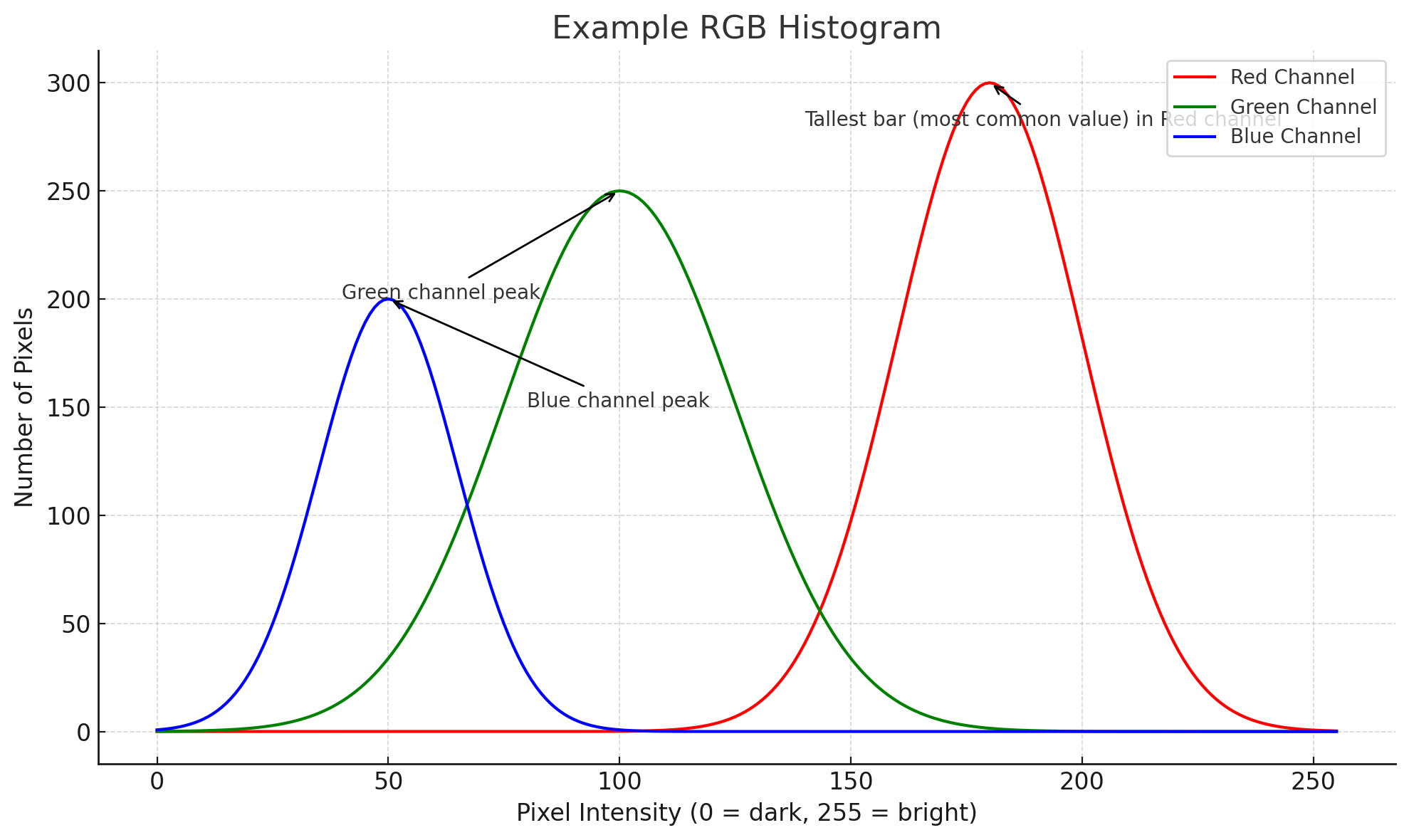
RGB histogram
The diagram of an RGB histogram shows each color channel's pixel intensity distribution and marking their peaks so it can be easier to explain histogram shift.
### How Histogram Shift works?
Histogram shift works by finding pixel values that appears frequently or more often in the image and those that appear rarely or not at all. First, we find the pixel value that appears most frequently (peak point) and a nearby pixel value that appears very rarely or not at all (zero point). Then we shift all pixel values between the peak and zero point by one unit, creating an empty slot at the peak + 1 position. We now use those empty slot to hide our secret data. Pixels at the peak value can either stay the same (representing bit 0) or move to the empty lsot (representing bit 1). The special thing of this method is that, it's completely reversible. We can extract the hidden data and restore the image to its exact original state.
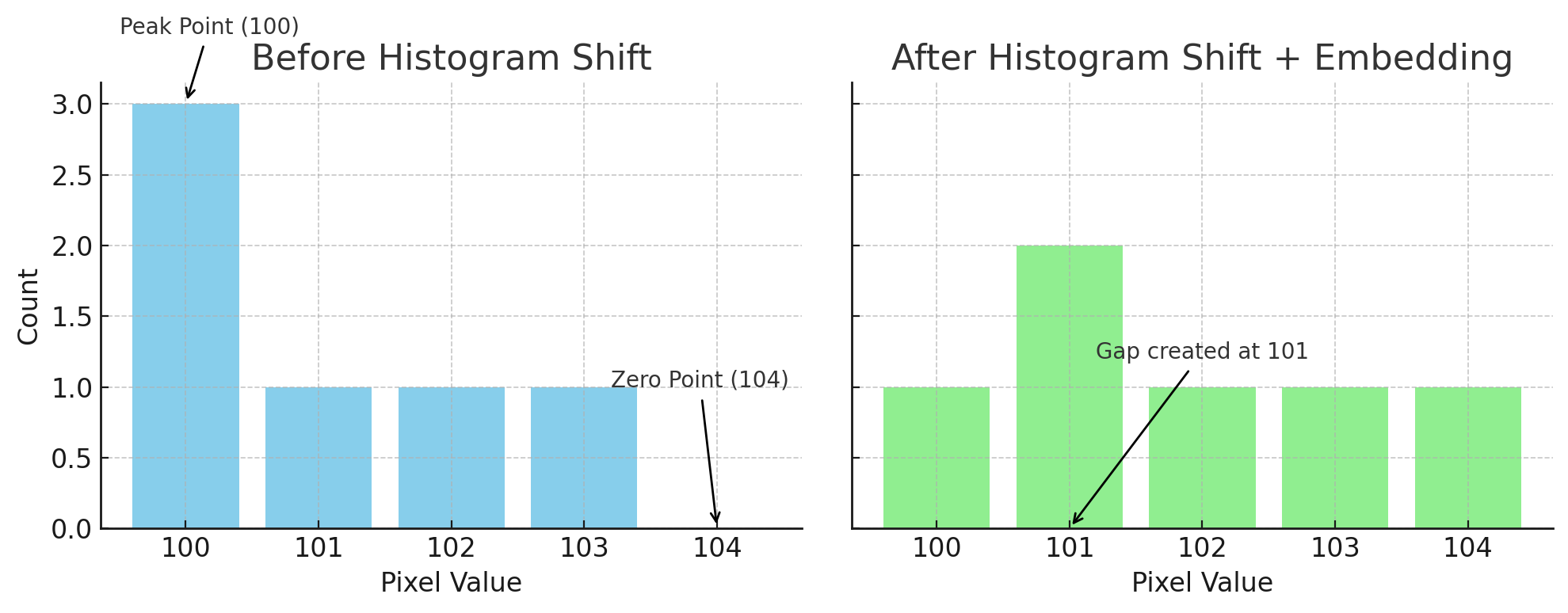
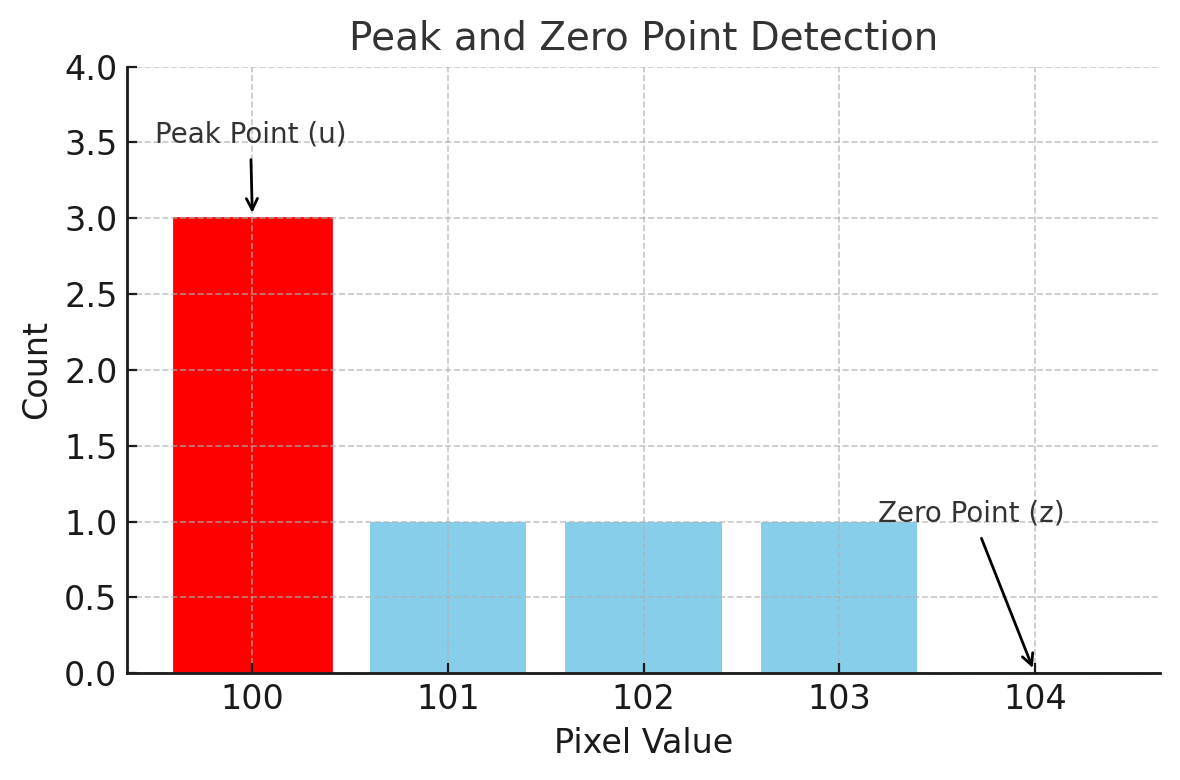
For example: we have pixel values like: \[100, 100, 100, 101, 102, 103] and we want to embed the bits\[1,0,1]. Now the peak point here in pixel values is 100 (appears 3 times) and Zero point is 104(doesn't exist). So we shift values 101, 102, 103 to become 102, 102 and 104. Now our histogram has a gap at 101, we will use it for embedding. We keep 100 for bit '0' and change to 101 for bit '1'. The overall result: \[101, 100, 101] for our data bits and shifted values \[102,103,104].
Before and after histogram shift
The diagram shows our before and after histogram shift example: Left chart shows original histogram with the peak point at 100 and zero point at 104 (which doesn't exist). Right chart shows after shifting values to create a gap at 101 where the secret bits are embedded.
### Implementing the code
Before starting, ensure you have:
* Read our [AES Encryption](/steganography/aes-encryption.md) guide.
* Basics of NumPy.
* The aes.py file will be used for AES encryption page.
Install dependices first:
```
pip install numpy pillow pycryptodome
```
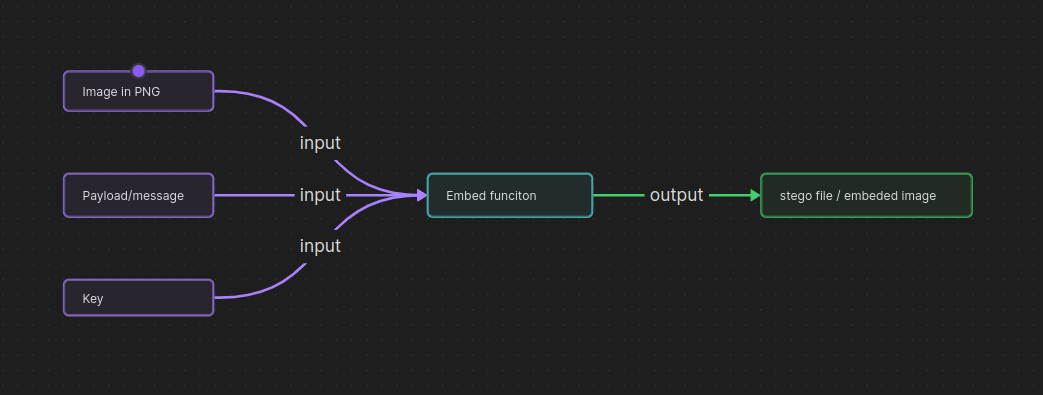
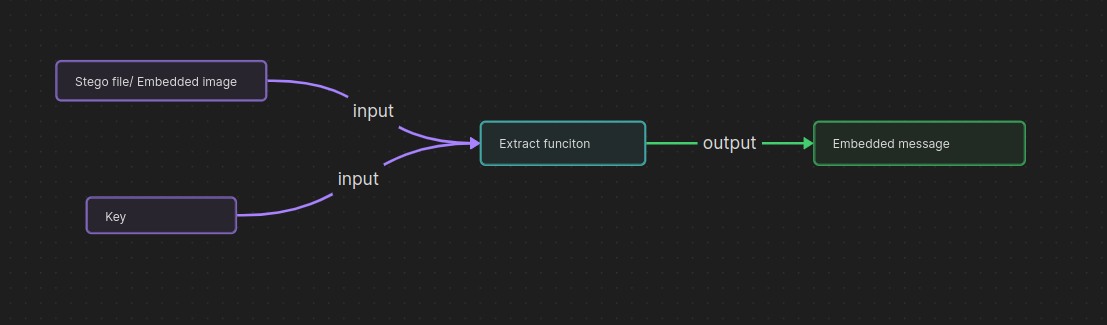
The implementation consists of two main fucntions:
embedding
* embed() function that hides the message in image using the key.
extracting
* extract() function that recover the message from the image using the same key.
We will need an image file in PNG as cover file, a secret message to hide and a key for encryption and pixel randomization.
### Embedding
```python
from PIL import Image
from aes import encryption, decryption, to_seed
import random
import numpy as np
def find_peak(hist):
u = int(np.argmax(hist))
zero_bins = np.where(hist == 0)[0]
if zero_bins.size:
z = zero_bins[np.argmin(np.abs(zero_bins - u))]
else:
z = int(np.argmin(hist))
return u, z
```
Before we jump to the main function we need this function to find peak and zero point in image pixel's values.
We import image from PIL (pillow), Pillow is a big library for image that can create image and manipulate images, but we need only Image function here. The "aes" module is a custom script from AES encryption section. Just save the aes script in aes.py along with the current script. Next, we import random module for value randomization. Lastly we import numpy as np complex mathematical calculations.
Now lets start with first function, find\_peak() function takes histogram (array of pixel counts) as it only argument. Next, using np.argmax() function we finds the index of the largest value in histogram. If histogram is \[3, 8, 2, 5], np.argmax() returns 1 because the largest value 8 is at index 1. Here, the index represents the pixel value with the highest frequency (peak point) then using int() we convert the output to integer. So we have the peak point in 'u' variable. We creates boolean array wehre each position is True if that histogram count is 0 then it means no pixel with that intensity. Bascially we are looking for that value which doesn't exist by using hist == 0 at index 0 . Using np.where() function which returns the indices where the condition is True. Overall this gives us all pixel values that do not occur in the image, like all the values from 0 to 255 which didn't occur at all. Next, we check if there is at least one zero bin (pixel value with 0 frequency). Using np.abs() function we calculates the difference between each zero bin and the peak point and get the absolute value of each difference, so we can see how far each zero bin is from the peak. Now, using np.argmin() function we find the index of smallest difference which is the closest zero point to the peak point. If there is no zero point ( every pixel value occurs at least once), we find the least frequent pixel values instead by using np.argmin() function on histogram and return the 'u' variable (peak point) and 'z' variable (zero point).
peak and zero
This diagram shows the peak point in read and zero point (which doesn't exist). That's basically we find peak and zero point through the function.
{% code fullWidth="true" %}
```python
def embed(cover_path, payload, key):
with Image.open(cover_path) as img:
if img.mode != 'RGB':
img = img.convert('RGB')
pixels = list(img.getdata())
if not isinstance(payload, str):
raise ValueError("Message must be a string.")
if len(payload.strip()) == 0:
raise ValueError("Message can not be empty!!")
if len(payload) > 100:
raise ValueError("The limit exceeds 100 characters")
payload = payload.ljust(100).encode('utf-8')
epayload = encryption(payload, key)
```
{% endcode %}
Now, let's implement our main function. embed() function takes 3 arguments: cover\_path as cover image file, payload as message and the key for value randomization.
First, we open the image using Image function of pillow module and check if the mode of the RGB, if not, we convert it to RGB. This ensure the image is in a consistent format of 3 channels for embedding data. Next, we fetch the RGB values of all pixels and stores them as a list of (R,G,B) tuples. This list will later be modified to hide the encrypted message.
Moving on, we have some error handling for validating the user message. We check if the payload is actually a string, then we check if the payload is empty or not, lastly we check if payload is longer than 100 characters. This protects against invalid or oversized inputs.
Next, we pad the payload with space if user provides less than 100 characters to make it 100 and encode it in utf-8. Using encryption() from aes.py or AES encryption section to encrypt the 100 byte message with the key. Inside encryption(), there is derive\_key() function which turns your password into a 256-bit AES key using SHA-256 hashing and creates an AES cipher in EAX mode which supports both encryption and authentication. then we encrypt the data and generate a tag to detect tampering. We will get final encrypted payload as output of encryption(). This means even if someone extracts the hidden data (which is already impossible) from the image, they still can't read it without the correct key.
```python
starting = b'HISTOSTART'
ending = b'HISTO_END!'
data = starting + epayload + ending
bits = ''.join(f'{byte:08b}' for byte in data)
total_bits = len(bits)
max_bits = len(pixels) * 3 ### 3 color channels per pixel
if len(bits) > max_bits:
raise ValueError('Payload too large to embed in cover image.')
arr = np.array(img, dtype=np.uint8)
height, width, channel = arr.shape
flat = {ch: arr[..., i].flatten() for i , ch in enumerate(('R','G','B'))}
```
starting and ending variables holds marker that signals where the hidden message begins and where it ends cause we attach starting marker before and ending marker after the epayload. These markers help during extraction so the program knows exactly which part of the image contains the hidden message. Now we have whole message ready in byte but before we embed it, we need to convert these bytes into bits using for loop which goes through each byte in data. Later it becomes a string of 0s and 1s. Then, we store the total length of bits in total\_bits variable. Next, we store the total length of pixels in max\_bits. We check capacity of cover image, If the number of bits in the message is more than the available slots in the image, it throws an error.
Using np.array() we converts the image into a numpy array of unsigned 8-bit integers (values from 0 to 255) and store the array in arr variable. Next, we gives the dimension to the array using arr.shape and extract height which are the number of rows , width which are the number of columns and channel which should be 3 (R, G, B) as we are working with RGB mode. We flatten each color channel now. For each channel (R,G,B), we picks all values for that channel and by using .flatten() function we turns the 2D pixel grid into a 1D list for easier bit-by-bit modification. We use enumerate(('R', 'G', 'B')) so ' i ' gives the channel index like (0 for Red, 1 for Green, 2 for Blue) while 'ch' gives the channel name and store each flatten array in a dictionary where the keys are 'R', 'G', 'B'.
```python
peaks, zeros, shifts = {},{},{}
total_capacity = 0
for ch in ('R','G','B'):
hist, faltu = np.histogram(flat[ch], bins=256, range=(0,255))
u, z = find_peak(hist)
peaks[ch], zeros[ch] = u, z
shifts[ch] = 1 if z > u else -1
total_capacity += hist[u]
if z > u:
mask = (flat[ch] > u) & (flat[ch] < z)
flat[ch][mask] += 1
else:
mask = (flat[ch] < u) & (flat[ch] > z)
flat[ch][mask] -= 1
if total_capacity < total_bits:
raise ValueError(f"Insufficient capacity : {total_capacity}, try bigger png file")
bits_pr_ch = total_bits // 3
remainder = total_bits % 3
bits_distro = {}
start_idx = 0
for i , ch in enumerate(('R','G','B')):
extra = 1 if i < remainder else 0
end_idx = start_idx + bits_pr_ch + extra
bits_distro[ch] = bits[start_idx:end_idx]
start_idx = end_idx
```
We first prepare empty storage for peaks which will store the peak point for each color channel, zeros which will store the zero point for each channel, shifts which will store whether we shift pixel valures up (+1) or down(-1) for each channel. Then we have total\_capacity = 0 which counts the total number of bits we can embed across all channels.
We now start a for loop which goes through all R, G and B channels, using np.histogram() function we create a histogram for the channel and counts how many pixels have each value from 0 to 255. Next, we find peak and zero point using find\_peak() function i described earlier. In return we get u as peak point and z as zero point. Then we assign those u and z to peaks\[ch] and zeros\[ch]. Next, we decide the shift direction in shift\[ch], if the zero point is above the peak, we shift pixel values up(+1) and if the zero point is below the peak, we shift pixel values down (-1) . This creates an empty slot next to the peak where bits can be stored. Next, using Total\_capacity += hist\[u], each pixel at value u can carry 1 bit after we create the gap next to u.
Now, we create gap by shifting pixels between peak and zero using this if else condition. We only move pixels strictly between u and z. so if z > u , we shift those pixels up by 1 means the slot at u+1 becomes empty, If z < u then we shift those pixels down by 1 means the slot at u-1 becomes empty. There's now a guaranteed empty bin adjacent to the peak in each channel — this is where bits will me embedded later.
Next, we check capacity of image, if it can hold all the bits of the message. If there aren't enough peak pixels across all channels to store all bits we throw an error. Now we split the bitstream into 3 parts for 3 channels R, G and B evenly as possible among them. As we know how many total bits we have to embed, we divided them among those 3 channels. remainder variable has the leftover bits that don't divide evenly. Now, bit\_distro{} is a dictionary that will store which bits go to the which channel, start\_idx keep track of where we are in the bit string.
Now, we loop over each channel and get index value in i and channel name in ch like R, G and B. We already calculated how many bits each channels gets and leftover bits that don't divide evenly in remainder so this line 'extra = 1 if i < remainder else 0' gives one extra bit to the first remainder channels so all bits can be used.
Next, we get the end\_idx which contains start\_idx, bits\_pr\_ch and extra bit. Then, we slice the bits for this channel and stores them in bits\_distro\[ch]. Next, we move the starting position forward using start\_idx = end\_idx which updates the index so the next channel gets the next chunk of bits.
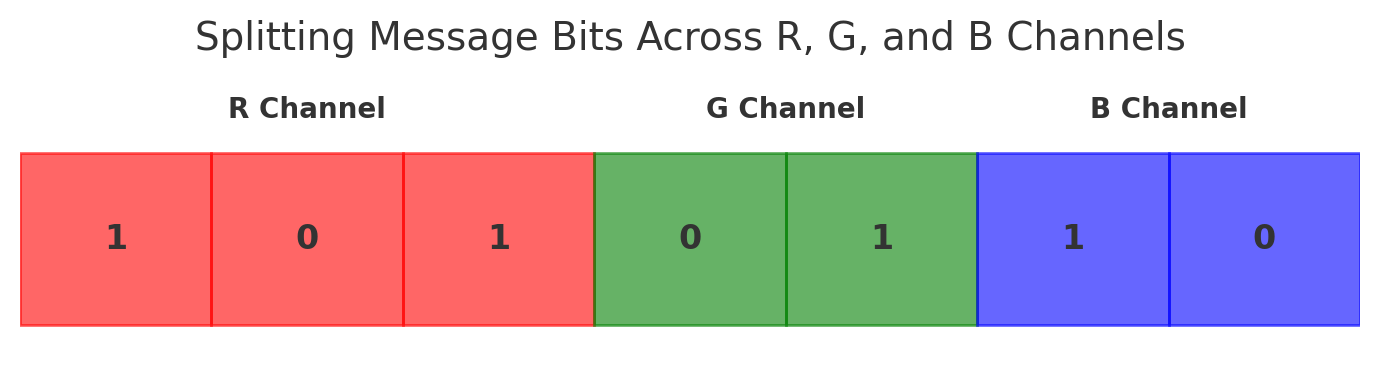
For example: if bits = '1010110' , bits\_pr\_ch = 2 and remainder =1 then Red channel gets "101" (2 bits + 1 extra), Green channel gets "01" and Blue channel gets "10" .
splitting
This diagram shows how the bit sequence is split between the Red, Green and Blue channels with each channel getting its own chunk of bits.
Continuing on code:
```python
seed = to_seed(key)
mage = random.Random(seed)
for ch in ('R','G','B'):
channel_bits = bits_distro[ch]
if not channel_bits:
continue
positions = list(range(flat[ch].size))
mage.shuffle(positions)
u = peaks[ch]
shift = shifts[ch]
bit_idx = 0
for pos in positions:
if bit_idx >= len(channel_bits):
break
if flat[ch][pos] == u:
if channel_bits[bit_idx] == '1':
flat[ch][pos] = u + shift
bit_idx += 1
stego = np.stack([flat[ch] for ch in ('R','G','B')], axis = 1)
stego = stego.reshape((height, width, 3)).astype(np.uint8)
Image.fromarray(stego, 'RGB').save("encoded.png")
```
Now this is the actual or main part of the code where we actually embed message's bits into the image.
Using user provided key we generate seed first which then used in random.Random() function to create pseudo random sequence for shuffling. Now we start the for loop which go through all 3 channels. We pass each channel through bits\_distro\[] indexing and store it in channel\_bits to get the bit sequence. If there is no bits left for this channel we skip it. Next, we create a position variable which holds the list of all pixel indexes in that flattened channel. Then we shuffle it using the seeded random generator — making the mebedding spread across the image instead of in order, which improves security.
Next, u hold the peak point for the current channel and shift holds +1 or -1 depending on zero-point position. and bit\_idx keep tracks of which bit we are embedding. Now we start another loop for that current channel which goes through shuffled pixel positions one by one. Next, 'if flat\[ch]\[pos] == u:' means if the current pixel value is exactly the peak value:\
if the bit is '1' we change pixel value to u + shift (the empty slot we made earlier).\
if the bit is '0' we leave the pixel value at u.
Then we move on the next bit until all bits for that channel are embedded.
Finally, we rebuild the stego image, using np.stack() function we combines the three modified flattened channels back into one array. Then using .reshape() function it returns to the original image dimensions (height, width and 3) and using astype() on np.uint8 we ensure pixel values are integers from 0 to 255. Lastly, we create an RGB image from this array and saves it as "encoded.png" and return this stego image. we have successfully embedded our message in image using histogram shift.
### Extraction
```python
def extract(stego_path, key):
with Image.open(stego_path) as img:
if img.mode != 'RGB':
img = img.convert('RGB')
arr = np.array(img, dtype=np.uint8)
height, width, channels = arr.shape
flat = {ch: arr[..., i].flatten() for i, ch in enumerate(('R','G','B'))}
peaks, zeros, shifts = {}, {}, {}
total_capacity = 0
for ch in ('R','G','B'):
hist, faltu = np.histogram(flat[ch], bins=256, range=(0,255))
u, z = find_peak(hist)
peaks[ch], zeros[ch] = u, z
shifts[ch] = 1 if z > u else -1
total_capacity += hist[u]
total_bits = 152 * 8
bits_pr_ch = total_bits // 3
remainder = total_bits % 3
```
Import the same module if you are creating separate file for extraction or you can just add this function after embed function.
This extract() function takes 2 arguments: stego image and the key (used during embedding). First, we open the image using Image function of pillow module and check if the mode of the PNG file is RGB or not, if not then we convert it to RGB mode. Then using np.array() function we convert the pixels in array of unsigned 8 bit integer (values 0-255) which makes pixel operation easier.
Using arr.shape we get the dimensions like height, width and channeld (should be 3 as RGB) . Next, we flattened to 1D arrays of pixel values for each color like flat\['R'}, flat\['G'] and flat\['B']. Because flattening makes it easier to scan through pixel in order. Next, we create empty store for peaks , zeroes and shifts. Now we start a for loop which goes through each channel and use np.histogram to build histogram of pixel values. Then we use find\_peak() here to get the peak and zero point and assign those u and z to peaks\[ch] and zeroes\[ch] for particular channel. Next, we store the shift direction in shift\[ch] of that particular channel either +1 or -1 based on the position of z relative to u, then we add the count of peak pixels to total\_capacity — this is how many bits can potentially be extracted. The function is pretty similar for some calculations and processes. After the loop is done, we store 152 bytes multiply by 8 to make them bits in total\_bits. Where did this 152 bytes came from? If you remember our embed() function which was of 100 bytes already and after encrypting that payload it becomes 132 bytes (16 byte from cipher.nounce and 16 bytes from tag) and then we added starting and ending markers which were of 10 bytes each so total we get 152 bytes of data we embedded in image.
Next, we divide the total bits in 3 channels and store them in bits\_pr\_ch variable, if there is leftover after dividing the total\_bits, we store that in remainder variable.
```python
seed = to_seed(key)
rng = random.Random(seed)
extracted_bits = []
for i, ch in enumerate(('R','G','B')):
extra = 1 if i < remainder else 0
channel_bits_count = bits_pr_ch + extra
positions = list(range(flat[ch].size))
rng.shuffle(positions)
u = peaks[ch]
shift = shifts[ch]
channel_bits = []
for pos in positions:
if len(channel_bits) >= channel_bits_count:
break
pixel_value = flat[ch][pos]
if pixel_value == u:
channel_bits.append('0')
elif pixel_value == u + shift:
channel_bits.append('1')
extracted_bits.extend(channel_bits)
bit_string = ''.join(extracted_bits[:total_bits])
byte_data = bytearray()
for i in range(0, len(bit_string), 8):
byte_chunk = bit_string[i:i+8]
if len(byte_chunk) == 8:
byte_data.append(int(byte_chunk, 2))
starting = b'HISTOSTART'
ending = b'HISTO_END!'
if not byte_data.startswith(starting):
raise ValueError("Start marker not found - wrong key or corrupted data")
if not byte_data.endswith(ending):
raise ValueError("End marker not found - extraction incomplete")
print("Markers validated successfully")
encrypted_payload = bytes(byte_data[10:-10])
# Decrypt
decrypted_data = decryption(encrypted_payload, key)
message = decrypted_data.decode('utf-8').rstrip()
print("Decryption successful")
print("message : ",message)
return message
```
Now using the same key which was used during embedding , we generate seed and then use that seed in random.Random() function to generate same pseudo random sequence. Next, we create empty list of extracted\_bits where we will store the bits after extracting. Here is another for loop starts which goes through all channels and gives out index number in i and channel in ch. Then we store 1 if index < remainder else 0 in extra variable so all bits can be used. Now we see how many bits this channel should give (same split logic as embedding). Next, we create a list of all pixel positions for the channel and store them in position variable and then we shuffle those positions so we check pixels in the same order as they were modified.
We get the peak position store in 'u' for that current channel (Red, Green or Blue) and store the direction of shifting (+1 or -1 ) in shift variable. Next, we create an empty list for channel bits means we will gather bits for particular channel in channel\_bits variable. Now there is another for loop which goes through shuffled pixel positions and then we store the values of the current channel in pixel\_value. There is if condition next, if the pixel value is exactly the peak value (u) then it represents bit 0 and if the pixel value is peak ± shift then it represent bit 1. We collect these bits in empty list channel\_bits, after that we extend extracted\_bits list we created earlier with these new channel\_bits and this will happen for all channels and we get all the embedded bits in extracted\_bits variable, Now we can toss aside the image and we can focus on recovering the message from that list of extracted bits. First we join all the bits and save them as a string, so it will be a long string contains message's bits.
Using for loop we group those bits into 8-bit chunks and convert each chunk to a byte and builds a bytearray which now contains the exact hidden data bytes. You remember we attached starting and ending marker? we need to find them in those bytes. Since starting marker attached first we can use .startswith() function to check if starting marker is there or not, if not then you might used the incorrect key or the data is corrupted. If yes then move on to check the ending marker which was attached in the last so we use .endswith() function here to check if ending marker is present or not, if not then either the data is corrupted or extraction was incomplete.
After validating markers, we remove those markers by string slices on byte\_data and get the actual encrypted payload/message bytes. Using decryption() function from aes.py or AES encryption section, we decrypt the paylaod with the same key which was used to embed and return the extracted message. We successfully extracted the message from the image using Histogram shifting method.
To use this tool, check my repository:
{% embed url="" %}
I named it Gradus, I have also added better error handling and validation for PNG as well. Clone the repository to use it.
Thanks.